Test features offline with ease! Harness's local mode with JSON files empowers developers to experiment with feature flags and iterate rapidly, even without an internet connection.

TL;DR
- Localhost mode allows the Harness Feature Flags SDK to run entirely from local JSON files without requiring internet connectivity.
- You download feature flag definitions and user segments from the Split REST API using simple curl commands with your API key.
- The SDK monitors your local JSON files and automatically syncs changes at configurable intervals, just as it would with cloud-hosted definitions.
- Offline development with localhost mode is currently supported in Java, Go, and Python SDKs.
With travel picking up again, Harness is keeping up the pace by rapidly releasing localhost mode from JSON support in three server-side SDKs: Java, Go SDK, and Python. This feature was added specifically in response to customer requests. It is indispensable when you wish to develop code productively over internet intermittencies and while on the move.
In fact, these very words you are skimming are also in motion, uploaded en route to a unique South American waterfall shared by two countries. I'll wait here while you flip to a quick internet search to find it… Alright, now that your curiosity is satisfied, let's continue.
With new digital nomad visas opening up, and travel restrictions closing down, there is no time like the present to take advantage of Harness's localhost mode from JSON. It supports retrieving complete Harness environment definitions from Harness Cloud in JSON format and then working offline from the local JSON files. This article will show you how it's done.
You will first need to download your Harness rules and then point your Harness SDK instance to your local files. Lastly, you will see how Harness SDK cleverly pulls changes from your local JSON files, just as it normally would from the Cloud.
Downloading Harness Rules
We retrieve the definitions (feature flag definitions, called splits, and lists of users, called segments) using two convenient GET requests, as shown below.
Utilizing curl on the command line, we send a request to Harness’s REST API that returns the JSON representation of the split (feature flag) definitions. You can see the command line request below, together with a screenshot of a sample response.
curl -XGET -H "Content-Type: application/json" -H "Authorization: Bearer YOUR_API_KEY" https://sdk.split.io/api/splitChanges\?since\=-1
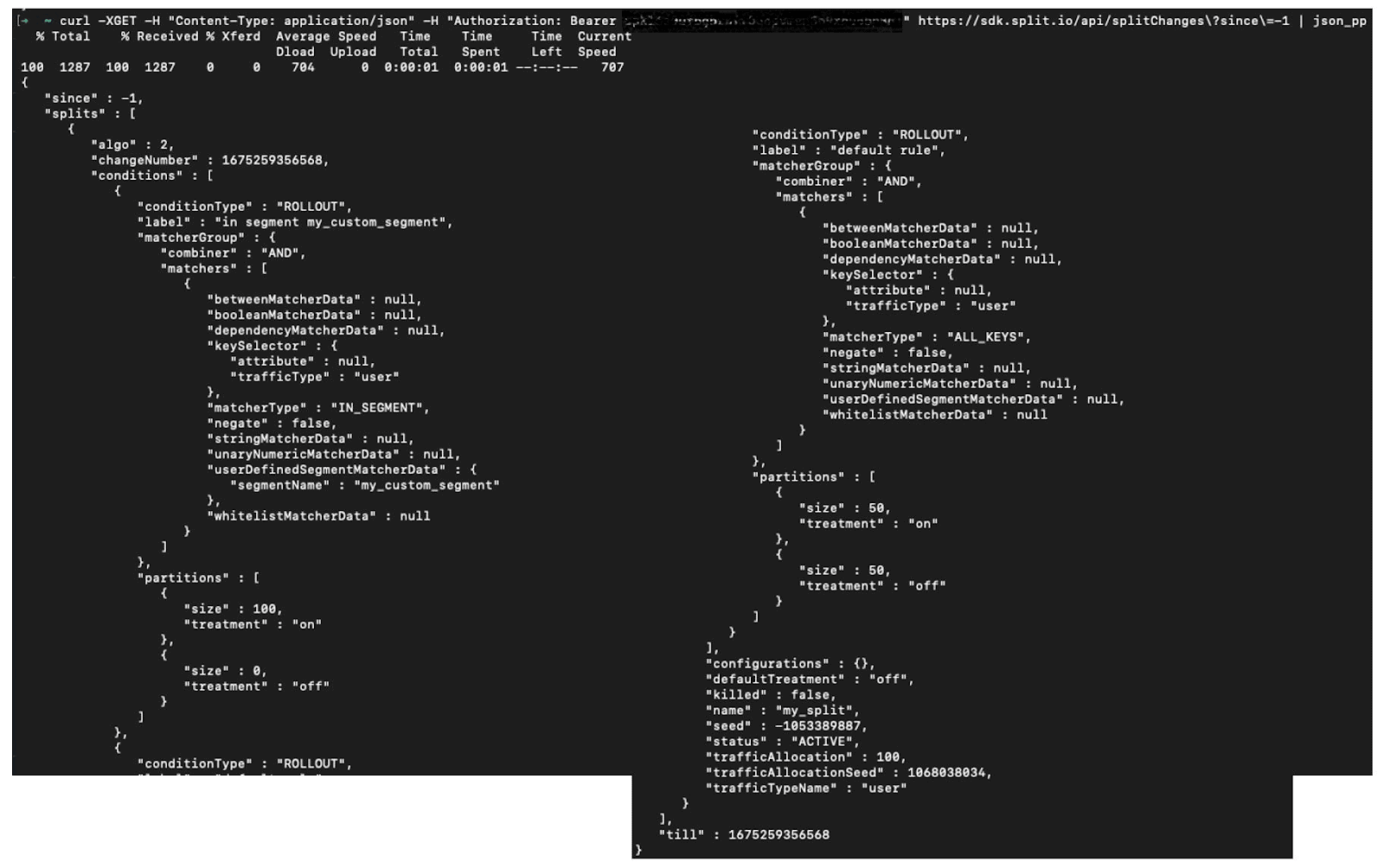
A few things of note: The Harness REST API base URL is https://sdk.split.io/api. Then endpoint splitChanges will return splits (feature flags). Finally, the query parameter since can be used to specify a number that identifies the previously synced version (this is the till JSON parameter shown in the code above).
The idea behind since is to optimize response size, allowing only the delta (differences) to be returned. In our case, we pass -1 as the value of this parameter to override the optimization and prompt the API to return the entire set of split definitions. Of course, the YOUR_API_KEY is a placeholder for your own API key that you retrieve from the Harness Management Console.
Lastly, you will notice a segmentName value in the above JSON response. The Harness SDK will look for this segment to identify the users for which the split (feature flag) definition applies. We will also retrieve the JSON representation of each segment definition (in this example, there is only one) from Harness's REST API using the segmentChanges/{segment_name} endpoint, as shown below.

The response of each of the above API requests should be written to a file. For the segmentChanges/{segment_name} endpoint, the name of the file for each response should match the name of the segment requested. For the example shown above, it would be my_custom_segment.json.
Setting Up the Harness SDK for Localhost Mode (Go Example)
You can follow the Harness Go SDK documentation to complete the following initial steps:
- Install the Harness SDK into your Go environment
- Import the Harness SDK into your project
- Instantiate the Harness SDK
Following that, there are a few parameters that you set in your Go code to initialize your Harness SDK client. This should point to your local JSON files with your split (feature flag) and segment definitions.
Provide the paths for the Harness SDK to find the local JSON files.
Use the reserved word "localhost" for the Harness API key value to indicate that the data source used by Harness SDK should be local files:
With these parameters set, you are ready to read Harness definitions from the JSON files. The Harness SDK will even regularly poll your local files for changes and use the data to evaluate feature flags. More on this below.
Synchronizing
The Harness SDK will run threads in the background to retrieve and update Harness definitions. You can set this to happen at specified time intervals (in seconds), as shown below for Go:
In localhost mode from JSON, the SDK pulls changes from the JSON files and then evaluates feature flags using the updated rules.
You can see this resyncing as it happens in real-time in the animation below. The debug information written to the terminal by the Harness Go SDK indicates that Harness's resync operation has been completed. You can also observe the updated feature flag return value (initially "on", updated to "off") printed to the terminal.
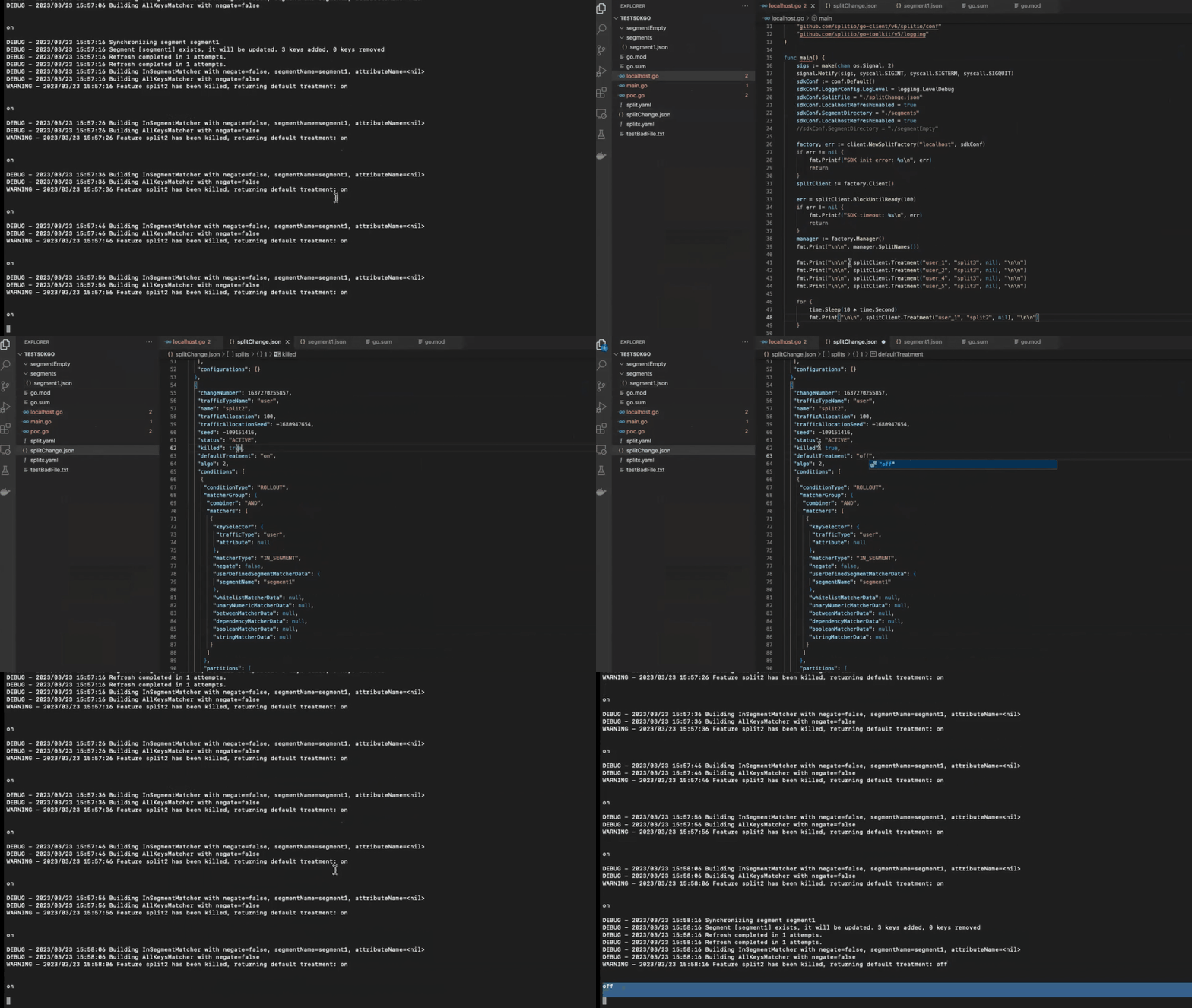
By resyncing on the fly, you have the flexibility to experiment and hone your user experiences in all of your scenarios, even when working offline.
Wrap Up
The world is in motion, and now you can be too, whether you want to travel across borders or just to the shady spot at the end of your backyard or garden. When your internet connection is taking a hit, your productivity does not have to.
Harness is there for you with the convenience of localhost mode from JSON, already supported for Java, Go and Python.
A last nod and thank you to Nadia Mayor and Matias Melograno on the Harness Team for a top-notch demo (as animated above).
Get Harness Certified
Harness Arcade includes product explainer videos, clickable product tutorials, manipulatable code examples, and interactive challenges.
Switch It On With Harness
The Harness Feature Data Platform™ gives you the confidence to move fast without breaking things. Set up feature flags and safely deploy to production, controlling who sees which features and when. Connect every flag to contextual data, so you can know if your features are making things better or worse and act without hesitation. Effortlessly conduct feature experiments like A/B tests without slowing down. Whether you’re looking to increase your releases, to decrease your MTTR, or to ignite your dev team without burning them out–Harness is both a feature management platform and partnership to revolutionize the way the work gets done. Switch on a free account today, schedule a demo, or contact us for further questions.