Harness Connector for OpenAI: Bring CI/CD Context to ChatGPT & Codex

TL;DR
- Context-Aware AI Workflows: Bring real-time software delivery details, such as build status, step failures, and pipeline definitions, directly into ChatGPT and Codex CLI without context switching.
- Seamless Transition from Analysis to Action: Query execution logs, diagnose failure causes, and perform authorized pipeline creations, updates, or executions within the same interface.
- Enterprise-Grade Security & Control: All actions and data access are governed by existing Harness user permissions, authenticated via OAuth, and require explicit approvals for requested changes.
A pipeline fails while you are working through a change in ChatGPT or Codex. To understand what happened, you need the execution details, the failed step, and the relevant pipeline configuration. Gathering that context can interrupt the work you were doing before you can even begin to solve the problem.
The Harness Connector for OpenAI brings that delivery context into your AI workflow. Connect your Harness account, ask a question about your pipelines, and work through the next step in the same conversation.
You can use Harness from the ChatGPT desktop app, web, and mobile, or connect Codex CLI through Harness Hosted MCP. After you sign in to Harness and complete OAuth authorization, the connector acts on your behalf using your Harness permissions.
Ask questions grounded in your delivery environment
Useful answers start with the right context. With the Harness connector, you can ask ChatGPT to find delivery resources, inspect execution history, and investigate failures using information from the Harness account you connected.
Start with a question such as:
“Summarize recent pipeline executions in organization <org> and project <project>. Highlight the failures I should investigate.”Then narrow the investigation:
“Investigate execution <execution ID>. Identify the failed step and explain the error.”Including your organization, project, and execution identifiers helps the connector find the right resources. You can follow up with questions about a specific pipeline and ask for a proposed change based on what the investigation finds.
For developers, this brings delivery information into the conversation where they are already working. For platform teams, it provides another way for users to explore the resources they have permission to access.
Move from investigation to action
The connector also supports authorized create, update, delete, and execute operations where those tools are available. That means the conversation can progress from understanding a failed execution to preparing a change or running a pipeline.
- Find the issue. Ask Harness to inspect the execution and explain the failed step.
- Review a proposed fix. Ask for a change to the relevant pipeline and inspect it before applying it.
- Take the next action. Request the supported update or pipeline execution, specifying the target and inputs.
- Check the result. Ask for the execution status and review the outcome.
For example, you could ask:
“Review pipeline <pipeline ID> in organization <org> and project <project>.
Propose a fix for the failed step and show me the change before applying it.”
Once you have reviewed the proposed change, you can request the next action. Available operations depend on your Harness licensing, exposed tools, permissions, and client configuration.
Choose the interface that fits your work
ChatGPT provides a conversational interface for exploring delivery status and working through questions. Use the desktop app or web while working at your computer, or mobile for supported conversations when you are away from it.
For developers who work in the terminal, Codex CLI can connect to Harness Hosted MCP and access Harness tools alongside their coding workflow. The CLI connection has its own OAuth authorization flow; it does not rely on completing the ChatGPT connection first.
Across these interfaces, the idea is simple: make Harness delivery context and authorized actions accessible where you already work. Availability and controls vary by OpenAI account, workspace, and client.
Connected to your account, governed by your access
To activate the connector, you sign in to Harness and authorize access through OAuth. Installing the plugin alone does not complete that connection.
The connector then uses the signed-in Harness user's access. Your Harness permissions determine which resources it can inspect and which actions it can perform. Connecting an AI client does not grant additional Harness permissions.
OAuth consent authorizes the connection; approval of an individual action is a separate step. Action approval behavior depends on the client and server configuration. Review the intended account, organization, project, and requested change before approving an operation.
This gives teams a practical way to bring AI into delivery workflows while retaining the user access model they already manage in Harness.
Get started with Harness in ChatGPT
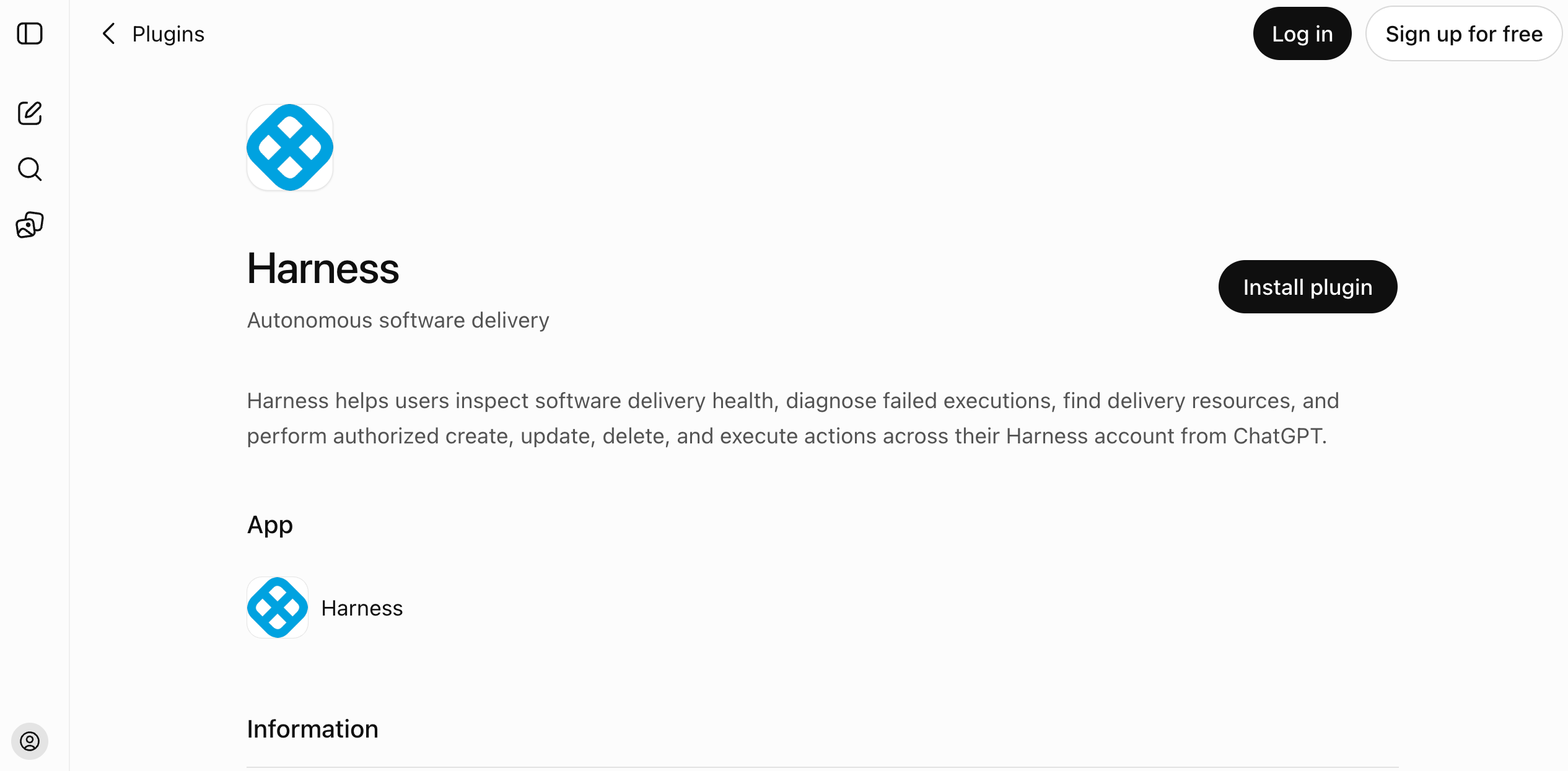
Open the Harness plugin in ChatGPT. Look for Harness, the description Autonomous software delivery, and Harness.io as the developer.
- Install the plugin if prompted, then select Connect.
- Sign in to the Harness account you want to use and complete OAuth authorization.
- Confirm that the intended user appears under Connected accounts.
- Select Try now and ask Harness to list the projects you can access in an organization.
You will need a Harness SaaS account with OAuth enabled and an OpenAI workspace that allows the integration. If your organization uses SAML or OIDC, your administrator must also configure the MCP-specific authentication URL. Harness Support can help confirm OAuth enablement.
If you prefer the terminal, configure Harness Hosted MCP in Codex CLI and complete its OAuth sign-in flow. Both paths give you a place to start with a small, read-only request before moving on to actions.
Start with the next delivery question you need answered. Connect Harness in ChatGPT, find the relevant pipeline, and work through it with the context from your Harness account.