The Harness VS Code Extension is now on the Marketplace. Monitor pipelines, debug logs, approve deployments, and query failures with Claude Code, Copilot, or Cursor, without leaving VS Code.

Your Harness pipelines, logs, and deployment approvals are now a sidebar panel away inside VS Code.
The Harness VS Code Extension is live on the VS Code Marketplace today, no .vsix download, no manual install. Search "Harness" in the Extensions view, and you're a click away from real-time CI/CD visibility without leaving your editor.
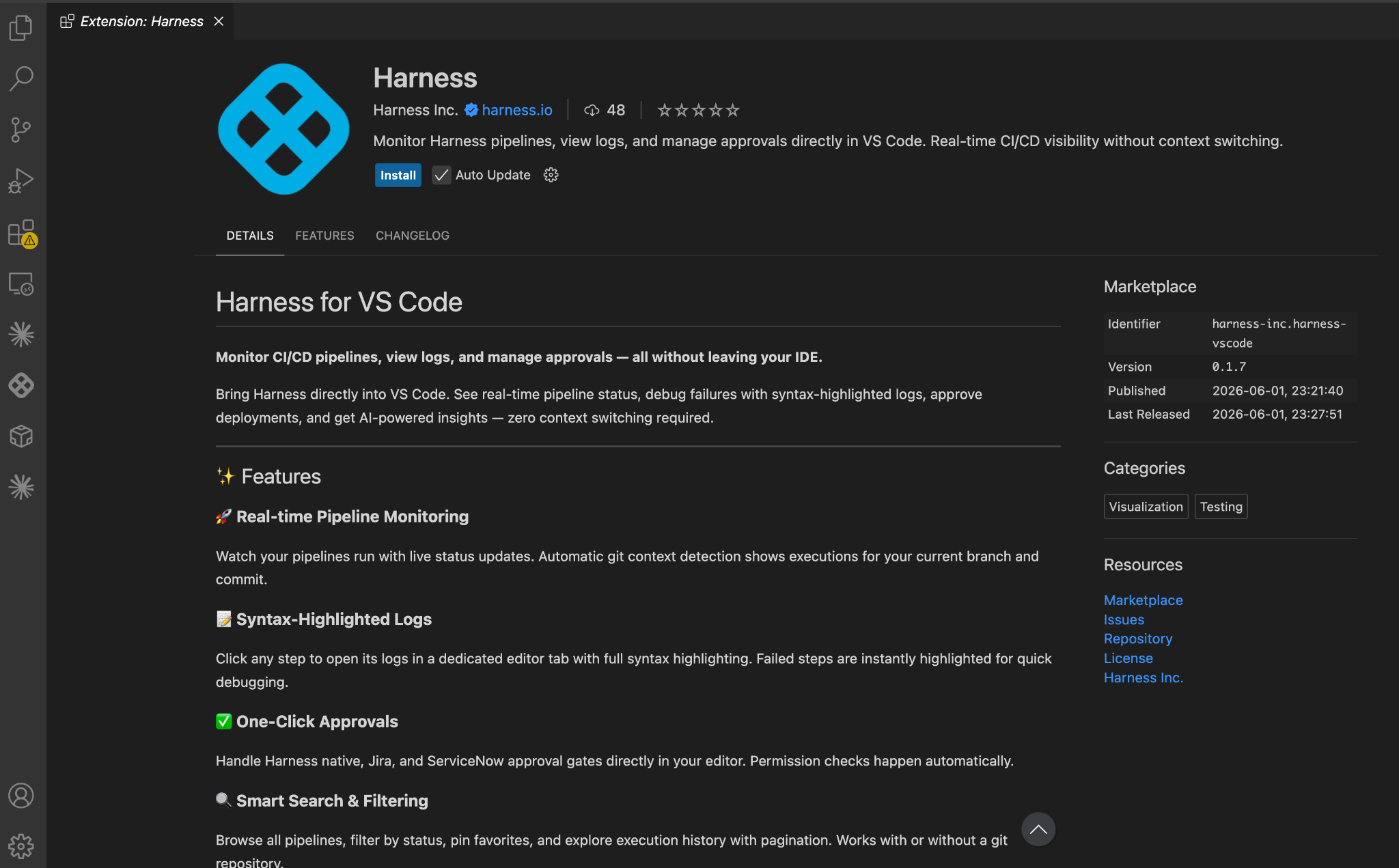
Everything Software Delivery in One Panel
| Capability | What it does |
|---|---|
| Pipeline monitoring | Live status for active runs, with automatic git context detection, executions for your current branch and commit surface automatically. |
| Log viewer | Click any pipeline step to open its logs in a dedicated editor tab, syntax-highlighted. Failed steps are flagged immediately. |
| Inline approvals | Approve or reject Harness native, Jira, and ServiceNow deployment gates directly in the editor. No navigating to the UI. |
| AI-assisted debugging | Ask IDE-integrated Cursor, GitHub Copilot, or Claude about a failure. Pipeline context (name, status, execution ID, URL) is injected automatically. No copy-pasting. |
Ask Your AI. It Already Has the Context.
When a pipeline fails, the default loop is: open Harness UI, find the execution, read the logs, copy the relevant output, open your AI assistant, paste, and ask. That's four context switches before you've started fixing anything.
The extension collapses that into one step. An input sits at the bottom of the Harness panel. Type your question, select Claude Code, GitHub Copilot, or Cursor from the dropdown, and the extension packages the current execution context automatically before sending.
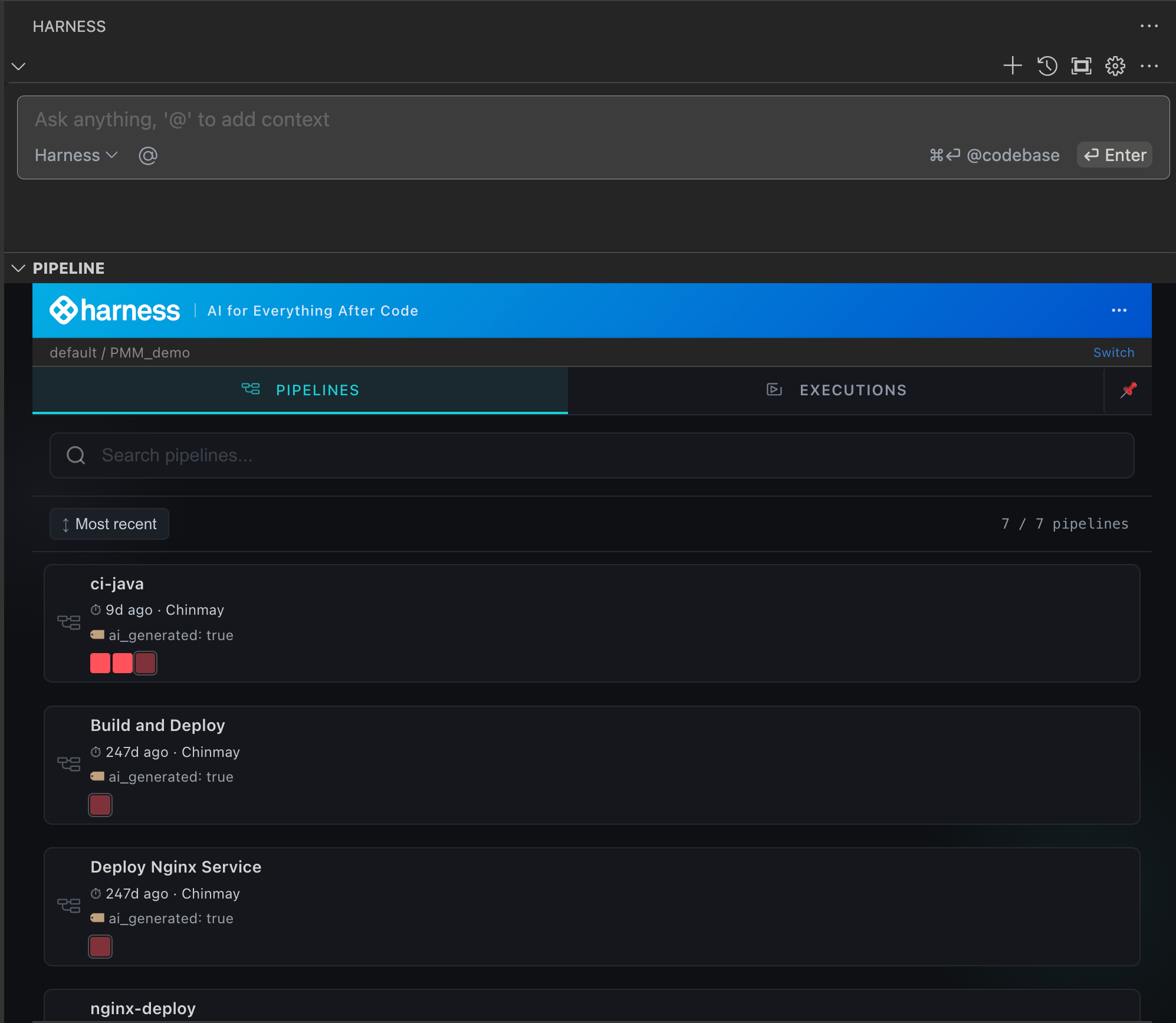
What makes the context useful, not just present, is the Harness Software Delivery Knowledge Graph. The Knowledge Graph is a structured data model that connects every entity across your SDLC: pipelines, services, deployments, environments, artifacts, policy results, and more. When the extension sends your AI tool the execution context for a failing pipeline, it's pulling from that graph. So Claude Code, Copilot, or Cursor isn't just reading a raw log dump. It's receiving structured, relationship-aware data about what ran, what it depends on, and where it broke. That's the difference between an AI that can technically answer a question about your pipeline and one that can accurately answer it.
Claude Code responses appear directly in the Harness sidebar (CLI mode) or open the Claude Code panel with the prompt pre-loaded (extension mode). Click Configure MCP in the AI footer to wire up your Harness credentials: project scope or global, your choice.
GitHub Copilot is auto-detected when the extension is installed. Context and prompt open in Copilot Chat, ready to go.
Cursor is auto-detected when you're running inside Cursor. For the simplest setup, install the Harness plugin from the Cursor marketplace. OAuth authentication, no manual configuration.
Install in Two Minutes
Install:
Open the Extensions view (Ctrl+Shift+X), search "Harness", and click Install. Or from the terminal:
code --install-extension harness-inc.harness-vscode
Connect your account:
Click the Harness icon in the Activity Bar → run Harness: Configure API Key → enter your instance URL and Personal Access Token. Your Account ID is extracted from the PAT automatically.
Select your org and project. Pipelines load immediately.
Requirements: VS Code 1.85.0+, active Harness account.
Watch it in action
Watch the walkthrough from our very own Luis Redda.
Stay in VS Code. Your Pipelines Will Follow.
The context-switching loop (open Harness, find the execution, copy the log, switch to your AI tool, paste, and ask) doesn't have to be part of how you work. Pipeline status, logs, approvals, and AI-assisted debugging all live in the same panel as your code. Install the extension, connect your account, and the next time something breaks, you'll already be where you need to be.
For more information, checkout the docs.
