Learn how to implement CI/CD pipeline as code with Harness, simplifying configuration, collaboration, and automation using YAML.

TL;DR
- Pipeline as code lets you define CI/CD pipelines as YAML files stored in version control alongside your application code.
- Harness pipelines can be created visually or written directly in YAML, then pushed to Git for team collaboration and reuse.
- Version-controlling your pipeline configurations enables audit trails, rollback capabilities, and collaborative review through pull requests.
- Storing pipeline logic as code reduces setup time for new projects and ensures consistency across environments.
As every company is considered a software company today, the world of DevOps is getting more attention than ever. The DevOps practices make software developers follow a standard approach to building and shipping software. Code and developers are the two main ingredients you need to build any successful software organization. The ‘as code’ movement has recently gained huge momentum in the industry. The 'as code' movement in software development and DevOps is revolutionizing how developers write code, provision infrastructure, create continuous integration and delivery pipelines, etc.
Today, we will be talking about ‘as code’ and ‘pipeline as code’ in particular. We will show you how ‘pipeline as code’ works in Harness.

The ‘as code’ Movement
Software development has come a long way; the tools like Docker, Kubernetes and many more have impacted the developers' way of building, testing and releasing software. Traditionally, infrastructure and configuration were managed manually, often leading to inconsistencies, errors, and difficulty in replicating environments. The "as code" approach expresses these aspects as code using domain-specific languages or configuration files, allowing them to be versioned, tested, and deployed alongside the application code.
The "as code" movement in software development refers to treating everything as code, such as infrastructure, configurations, and other operational aspects the developer focuses on while building a software delivery pipeline.
The "as code" movement ultimately favours DevOps principles. It promotes collaboration, automation, and infrastructure-as-code practices. Moreover, it leverages YAML-like simple languages to edit and manage everything as code in a pipeline easily. Hence, it increases the developer productivity significantly.
What is Pipeline as Code?

'Pipeline as Code' is a developer-friendly revolutionary software development concept that has recently gained momentum. The approach basically states to treat the entire software delivery pipeline as code. It means that all the pipeline stages, steps, tasks, and configurations can be seen as code. Pipeline as code can include everything the application needs as code but will be focusing on CI/CD pipeline as code in this article.
Traditionally, software development pipelines were defined using custom scripting languages in an ad-hoc way, but 'Pipeline as Code' uses a declarative or imperative programming language to define the software development pipeline.
Harness lets you store all your configurations in your Git repository.
This is a simple CI/CD pipeline for our application.

Harness CI/CD pipelines can be created using a drag-and-drop approach and also through a YAML wizard.
You can see the ‘Visual’ and ‘YAML’ tabs in the pipeline studio. You can click on the YAML tab to see how your CI/CD pipeline is configured.

The interesting fact is, you can edit this YAML and customize it accordingly. Push it to your GitHub repository, we will show you how to do it in a minute.

Let’s take a scenario where your manager wants to approve the pipeline before the application gets deployed to production.
Let’s go to our YAML and edit it to add an approval stage. Let’s add the Harness approval stage between the CI and CD stages.
We added the below code in the YAML between CI and Deploy stages.

You can see the added stage if you click on the visual tab.

This way, you can easily manage your CI/CD pipeline with the declarative YAML approach as code. Edit the YAML file to add more configurations, stages, steps etc.

The whole deployment pipeline can be viewed as a code.

This code with all the configurations can be pushed to a Git repository for others to reuse and collaborate.

You can simply click on ‘Move to Git’ and provide the name, repo details and branch. Finally, click on ‘Move to Git’.

You can see the Harness folder with all the configuration files in the pushed repo.

When you get into the Harness folder, you can see the sample pipeline yaml.

Now, your team can easily track, make edits, reuse the logic and reduce the time it takes to rebuild/set up the whole pipeline.
How to Start with Pipeline as Code?
If you want to start using Pipeline as Code, the very first thing you should do is to go ahead and signup at Harness. Create a project, and fork this sample application that has all the ingredients to do CI/CD with Harness.
Create a new pipeline. Select ‘Remote’ under ‘How do you want to set up your pipeline?’.

Select your connector type from the various options available. Select the one where your application code is present.

Make sure the connection is successful.

Now you can see the details being fetched in the ‘Create new Pipeline’ section.

Click ‘Start’ and select the Stage type.

We have selected ‘Build’ as the stage and added the required details, as shown below.

Set up the stage, and it will ask you to save the pipeline to Git. You can select the branch to commit and save.

After successfully saving your pipeline to Git, you can go to your repository and see if it is done.

You can click on the ‘.harness’ folder and see the pipeline yaml stored.
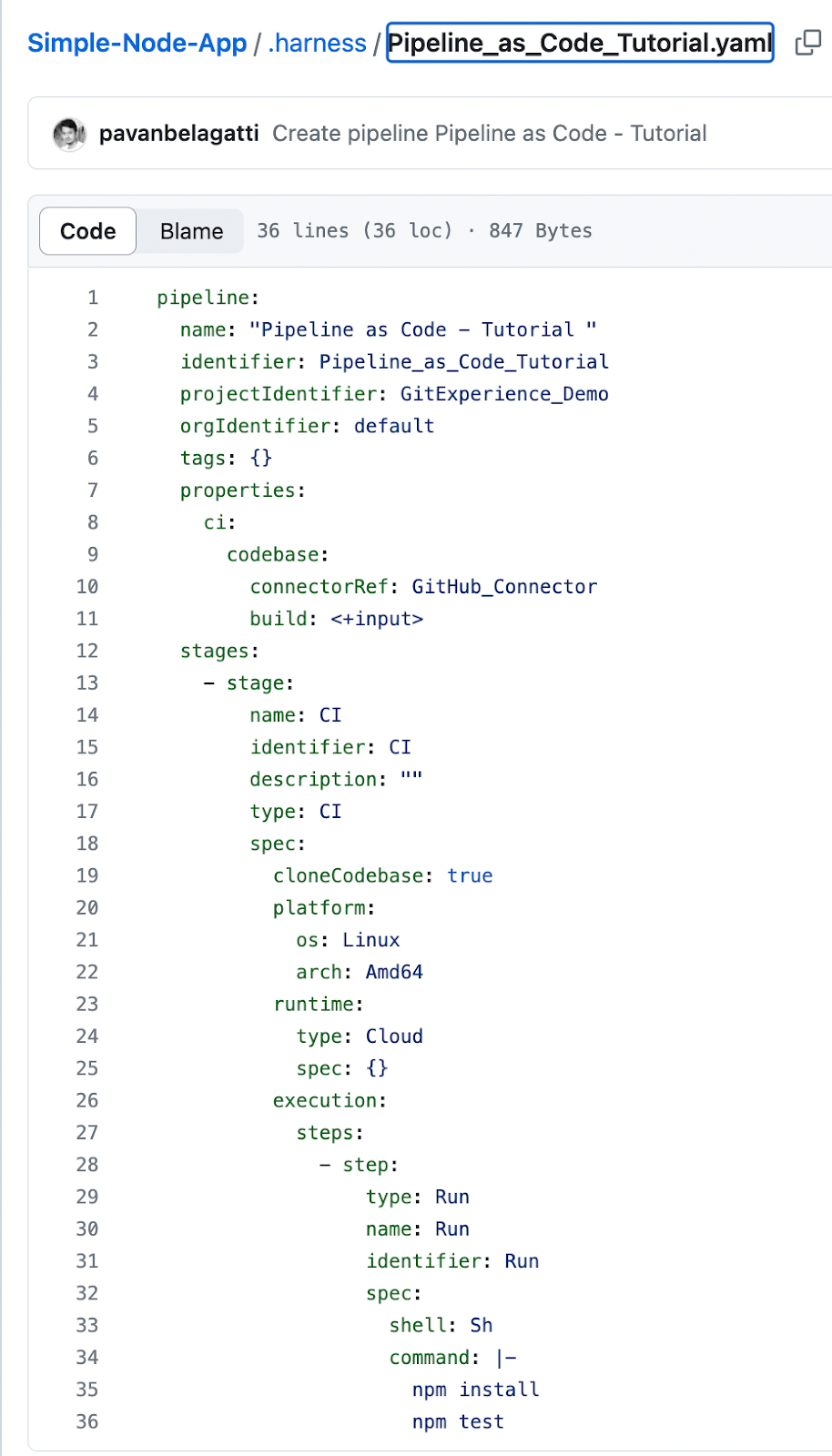
You can get back to your Harness pipeline studio, save everything and run the pipeline.

In the commits, you can see the recent commits.


This way, you can easily customize your pipeline using the ‘Pipeline as code’ concept. Add more steps, stages and configurations through the YAML editor, and the pipeline can be stored in a Git repository. This makes it easy for other team members to reuse the YAML configuration and save more time.
More on CI/CD Pipeline as Code
Fundamentals of CI/CD Tools
Cloud-Based CI/CD Workflows
Integrating Automated Security for CI/CD
Implementing Pipeline as Code
Reduce DevOps costs with effective CI/CD pipeline templates
Start creating your CI/CD pipeline as code today
